
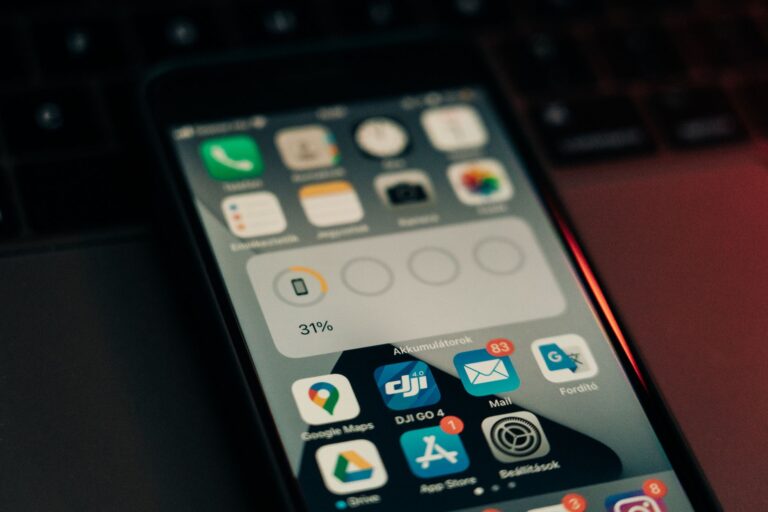
How Smartphone Batteries Work
Modern smartphones rely on lithium‑ion cells that store energy chemically. When you charge the device, lithium ions move from the cathode to the anode, and during discharge they travel back, releasing electricity that powers the processor, screen, radios, and everything else. Because the chemistry is finite, the phone’s operating system constantly monitors how much current each component draws. The more current a task requires, the faster the battery’s charge level drops.
Most users see a simple percentage bar, but underneath that bar is a complex accounting system that aggregates power consumption from the CPU, GPU, Wi‑Fi/Cellular radios, sensors, and even the vibration motor. An app that forces any of these subsystems to work harder than necessary will appear as a “drain” in the battery‑usage stats you can view in Android’s Settings → Battery or iOS’s Settings → Battery.
The Role of Background Activity
One of the biggest culprits behind unexpected battery loss is background activity. When you close an app by swiping it away, the operating system may keep a lightweight process running. This process can perform tasks such as fetching new content, checking for updates, or maintaining a persistent connection to a server.
Android introduced Doze and App Standby to limit how often apps can wake the device, while iOS uses App Nap and background‑fetch intervals. However, developers can request exemptions—e.g., a music streaming service that needs to keep playing, or a messaging app that wants real‑time push notifications. Those exemptions give the app permission to run more frequently, and each wake‑up consumes a burst of power.
When an app repeatedly wakes the CPU just to check a server for new data, the small but cumulative energy cost can add up quickly, especially if the device is on a weak cellular signal where each radio burst costs more.
Network and Data Usage
Radio communication is one of the most energy‑intensive operations on a phone. Wi‑Fi is generally more efficient than cellular, and 5 GHz Wi‑Fi can be slightly more power‑hungry than 2.4 GHz, but both are far less demanding than a 4G/5G connection in a poor coverage area.
Apps that constantly stream video, download large files, or poll a server every few seconds keep the radio active. Even small data transfers matter if they happen often enough. For instance, a social‑media app that refreshes the news feed every minute will keep the Wi‑Fi or cellular radio in a high‑power state, preventing it from entering the low‑power “sleep” mode that the chipset prefers.
Background sync mechanisms that are not intelligently throttled can also cause trouble. When the OS batches network requests, it can let the radio stay idle for longer periods, conserving energy. Apps that ignore this batching and trigger their own network calls break the efficiency model.
Sensors and Location Services
GPS, accelerometer, gyroscope, and proximity sensors all draw power, but GPS is the most demanding. A navigation app that keeps a high‑accuracy GPS lock will consume a noticeable amount of energy, especially if the app continues to request location updates while running in the background.
Many apps request “always‑on” location permissions to provide features such as geofencing or location‑based reminders. When the OS grants this permission, it often enables a high‑accuracy mode that uses a combination of GPS, Wi‑Fi positioning, and cellular towers. The more precise the location, the more often the device must query the GPS satellite constellation, which is a power‑hungry operation.
Other sensors, like the ambient light sensor or the magnetometer, use far less power, but if an app polls them at a high frequency (e.g., dozens of times per second), the cumulative effect can still be measurable.
Poorly Optimized Code and Graphics
Even when an app’s functionality is modest, inefficient programming can turn a lightweight task into a battery drain. Common issues include:
- Excessive UI redraws: Redrawing screens more often than needed forces the GPU to work harder.
- Unbounded loops or timers: A timer that fires every 100 ms without a clear purpose keeps the CPU awake.
- Inefficient image handling: Loading full‑resolution images when a thumbnail would suffice forces the memory subsystem and GPU to process more data.
- Memory leaks: When an app does not release resources, the system may have to run garbage collection more frequently, which uses CPU cycles.
Game apps and media‑rich experiences are especially vulnerable because they rely heavily on the GPU. If the frame rate is not capped or the rendering pipeline is not throttled when the device is idle, the GPU will keep working at high speeds, draining the battery.
OS Power‑Management Features
Both Android and iOS provide frameworks that let developers hint to the system about how critical their work is. Android’s WorkManager and iOS’s BGTaskScheduler allow background jobs to be scheduled during low‑power windows. When developers use these APIs correctly, the OS can batch work with other apps, reducing the number of radio wake‑ups and CPU spikes.
Conversely, if an app bypasses these APIs and uses raw AlarmManager (Android) or keeps a long‑running background service, it can force the OS to keep the device out of its low‑power states. This is why newer versions of the OS increasingly restrict background execution for apps that do not meet certain criteria.
Battery‑saver modes, found on most devices, limit background activity, lower screen brightness, and reduce CPU performance. Apps that are not designed to respect these limits may appear to “misbehave” when the user enables battery saver, but the underlying issue is that the app does not adapt to the OS’s power policy.
Tips to Keep Apps From Sucking Your Power
While developers have a big responsibility to write efficient code, users can also take steps to minimize unnecessary drain:
- Review battery‑usage stats regularly and identify apps that consistently rank high.
- Disable “background refresh” for apps that don’t need real‑time updates (iOS) or restrict background activity (Android).
- Turn off “always‑on” location for apps that only need location while you’re actively using them.
- Prefer Wi‑Fi over cellular when streaming or downloading large files.
- Close or uninstall apps you rarely use; even dormant apps can schedule background tasks.
- Enable system‑wide battery‑saver or low‑power mode during the day to force apps into a more restrained mode.
- Keep the OS and apps updated—developers often release patches that improve power efficiency.
In many cases, a quick glance at the battery‑usage screen will reveal that a single app accounts for a disproportionate share of consumption. Adjusting its permissions or updating it often solves the problem without needing to dive deeper.
Conclusion: The Balance Between Functionality and Efficiency
Battery life is a finite resource, and every app competes for a slice of it. The difference between an app that “just works” and one that “drains your battery” often comes down to how it interacts with the phone’s hardware and operating system. Background activity, network usage, location services, and code efficiency all play a part, and the OS provides tools to manage these factors—but only if developers use them wisely.
For the everyday user, the best defense is awareness: check usage stats, manage permissions, and keep software up to date. For developers, the goal is to let the OS do the heavy lifting—batching network calls, respecting power‑save modes, and avoiding unnecessary sensor polling. When both sides play their part, you get a phone that stays alive longer, letting you focus on the content you love rather than the charger you need.
